
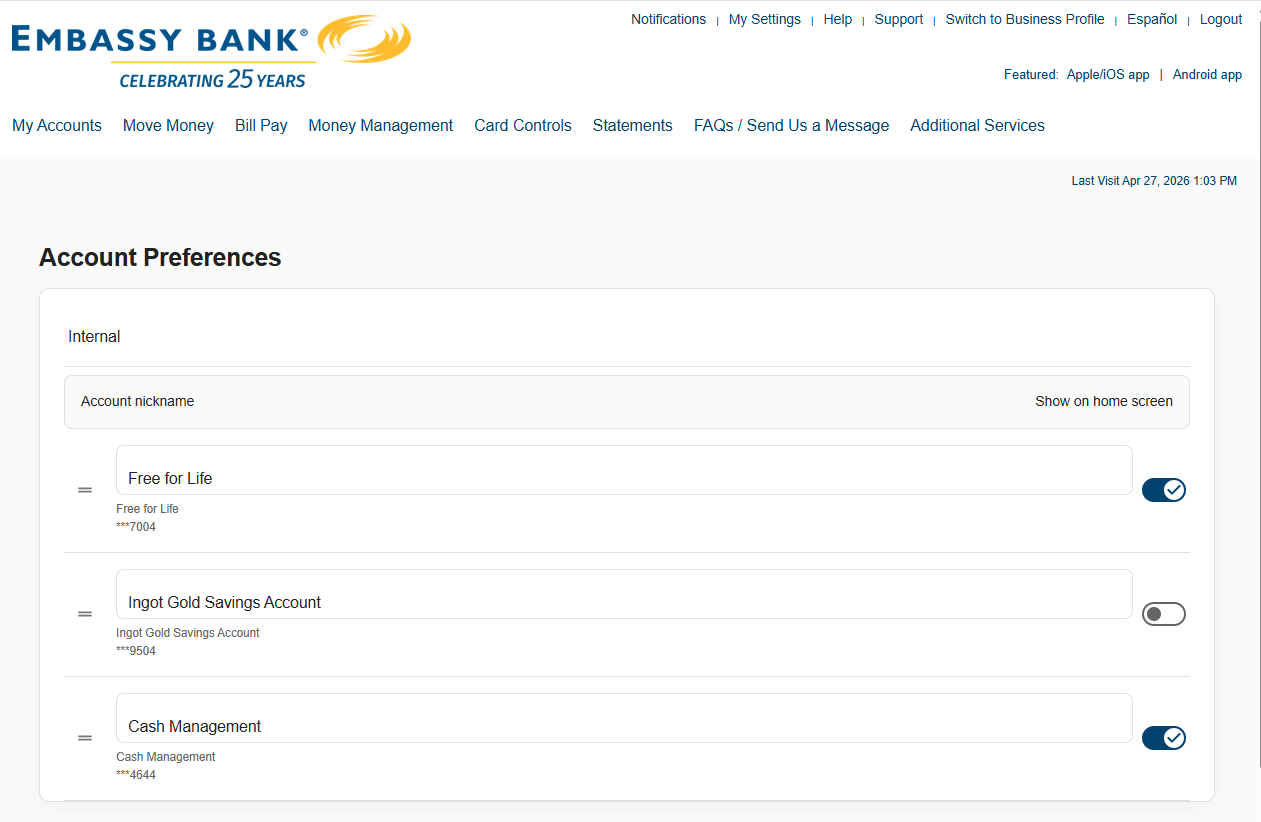
Personal Banking Website: At the top of the page, click on My Settings, then click Rename & Hide . Alternatively, you may click on My Settings in the top-right navigation bar, then scroll down and click Rename & Hide Your Accounts at the bottom of that screen. Change your account nicknames in the fields provided, enable or disable whether they display on the home screen, and reorder your accounts by dragging and dropping them, then click My Accounts in the main menu to return to the home screen. Please note: these nicknames will not be visible to Embassy’s staff.
Business Banking Website: Only Primary and Secondary business Online Administrators have access to nickname and hide accounts. Please view the attached help guide, “Business website – Rename and Hide Accounts”.
Apps: Currently the apps do not support changing account nicknames; please log into your Online Banking with a web browser to manage this feature.